posted on May 14, 2016 07:22
One of the best configurations for the exaSound PlayPoint network audio player is to connect a USB hard drive with music files and to control playback with UPnP or OpenHome app.
This mode of operation supports the following audio formats, sampling rates and resolutions in stereo and up to eight channels:
-
PCM 44.1kHz to 384kHz at 32 bit resolution
-
DXD 352.8kHz at 32 bit resolution
-
DSD64 at 2.8224MHz (64Fs) 3.072MHz (64Fs)
-
DSD128 5.6448MHz (128Fs) 6.144MHz (128Fs)
-
DSD256 11.2896MHz (256Fs) 12.288MHz (256Fs)
The PlayPoint supports asynchronous operation and gapless playback. DSD formats are supported natively, DoP is not required.
Popular UpNP/OpenHome control point apps include Kazoo, MconnectHD, PlugPlayer and Bubble UPnP.
Step-by-step instructions for configuring Kazoo for use with the exaSound PlayPoint Player
Kazoo is developed by Linn and it is available for for iPad (iOS 8.0 and later), Android (4.1 and later), Windows (Windows XP SP3 and later) and Mac (Lion and later). You can download Kazoo form https://oss.linn.co.uk/trac/wiki/DownloadKazoo. iOS and Android versions are available on the iTunes and Google Play stores.
1. Follow the instructions in the exaSound PlayPoint Owner's Manual to connect and configure your PlayPoint device.
2. Power on the PlayPoint.
3. Connect to the PlayPoint a USB hard-drive with music files. The light on the hard drive will start blinking. This indicates that the PlayPoint is building a music library from the metadata stored in your music files. It may take a while. When the blinking stops, your music library is fully loaded.
4. When needed, the music library can be updated from the Music Library screen.
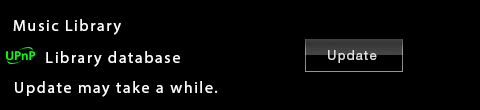
5. Install the Kazoo on your mobile device, Mac or PC.
6. Your mobile device or computer and the exaSound PlayPoint must be connected to the same home network.
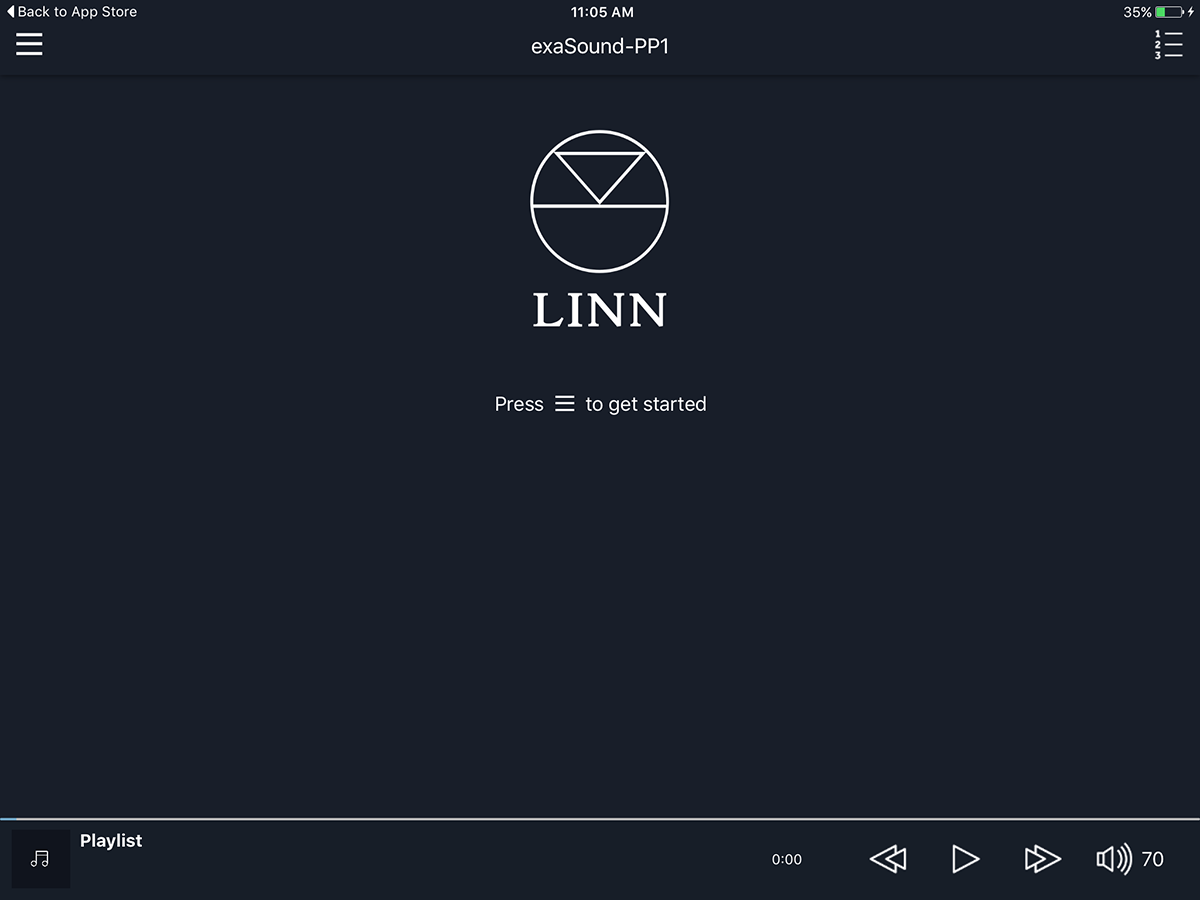
7. Start Kazoo. If the PlayPoint is the only OpenHome device on your network, it will be configured automatically.
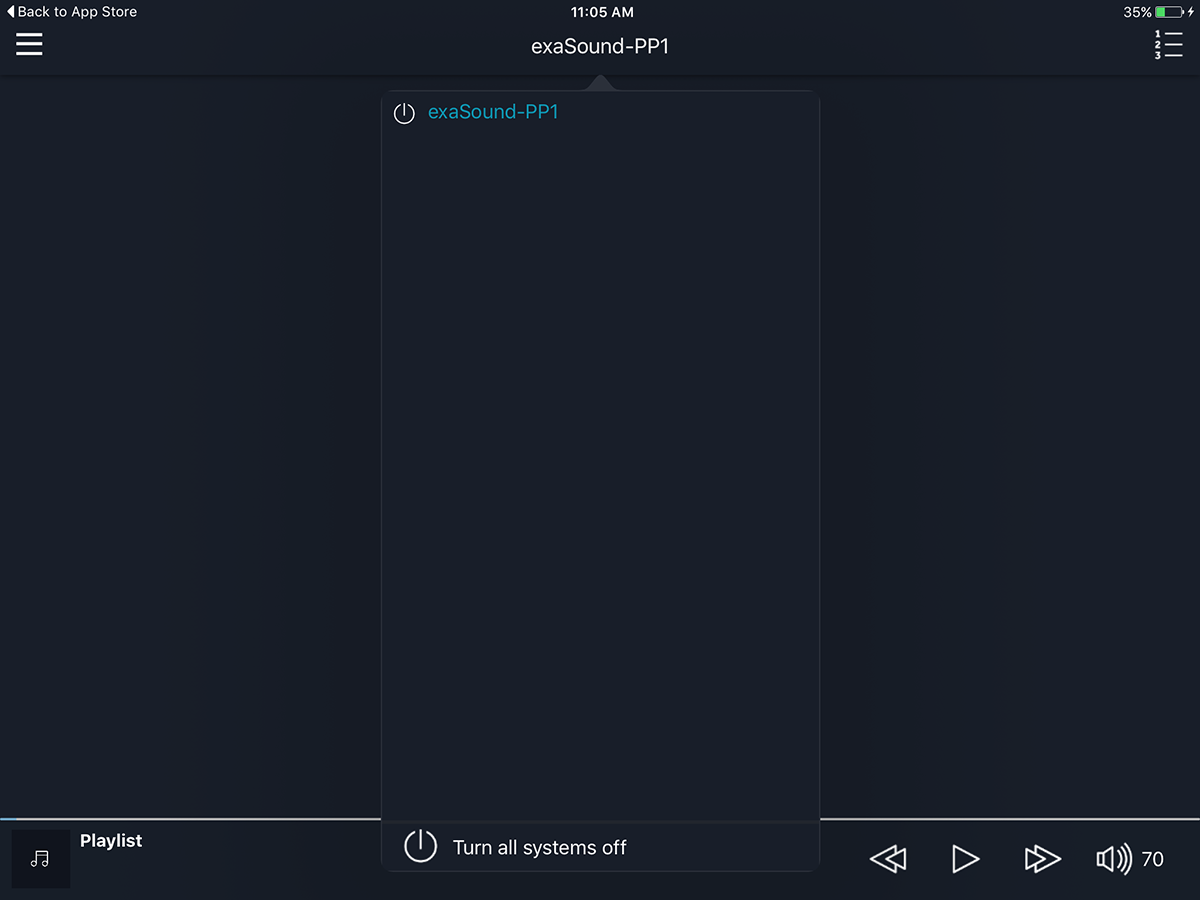
8. Tap or click on the room connection title located in the middle of the top toolbar. Make sure that the exaSound PlayPoint is selected.
9. From the Kazoo home screen tap or click on the Settings icon located in the lower right corner.
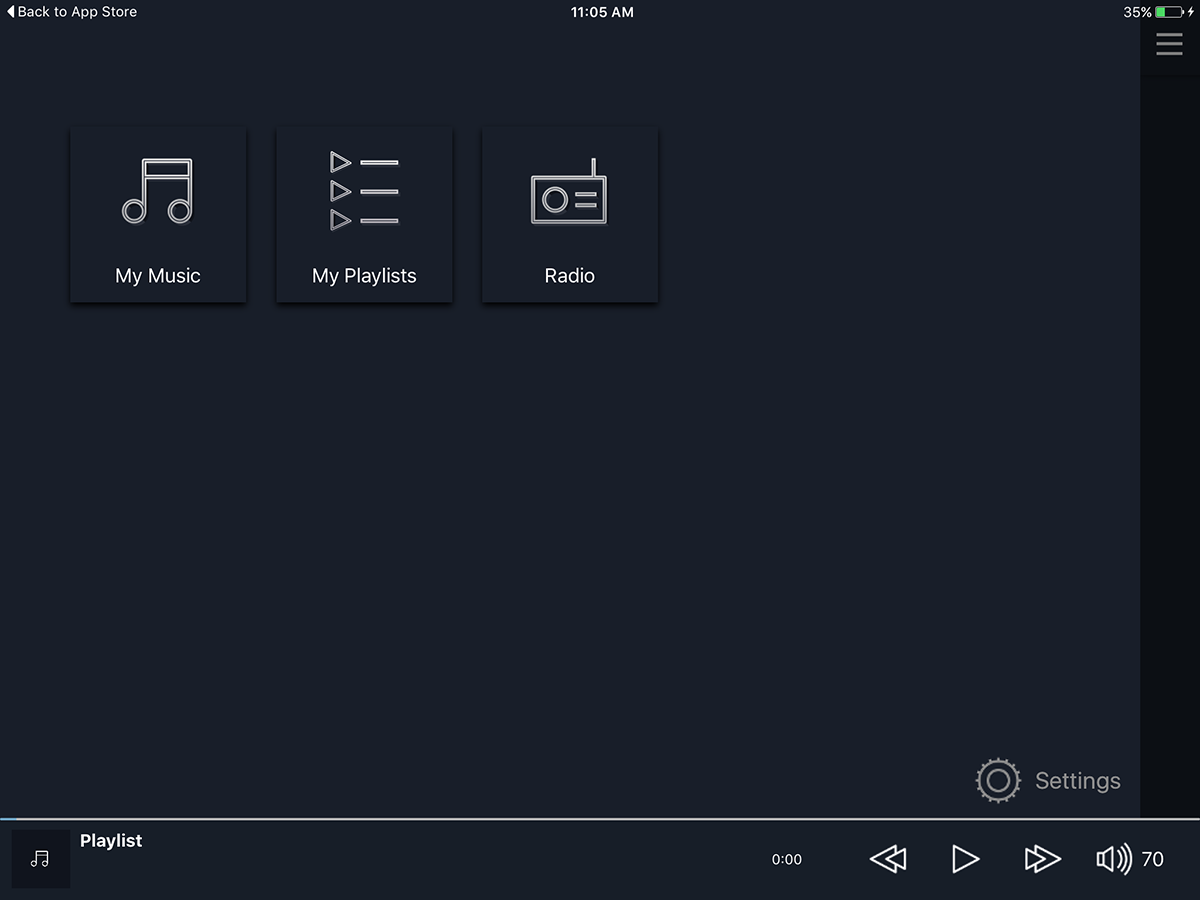
10. Tap or click on the Media Server box and make sure that the exaSound PlayPoint library is selected.
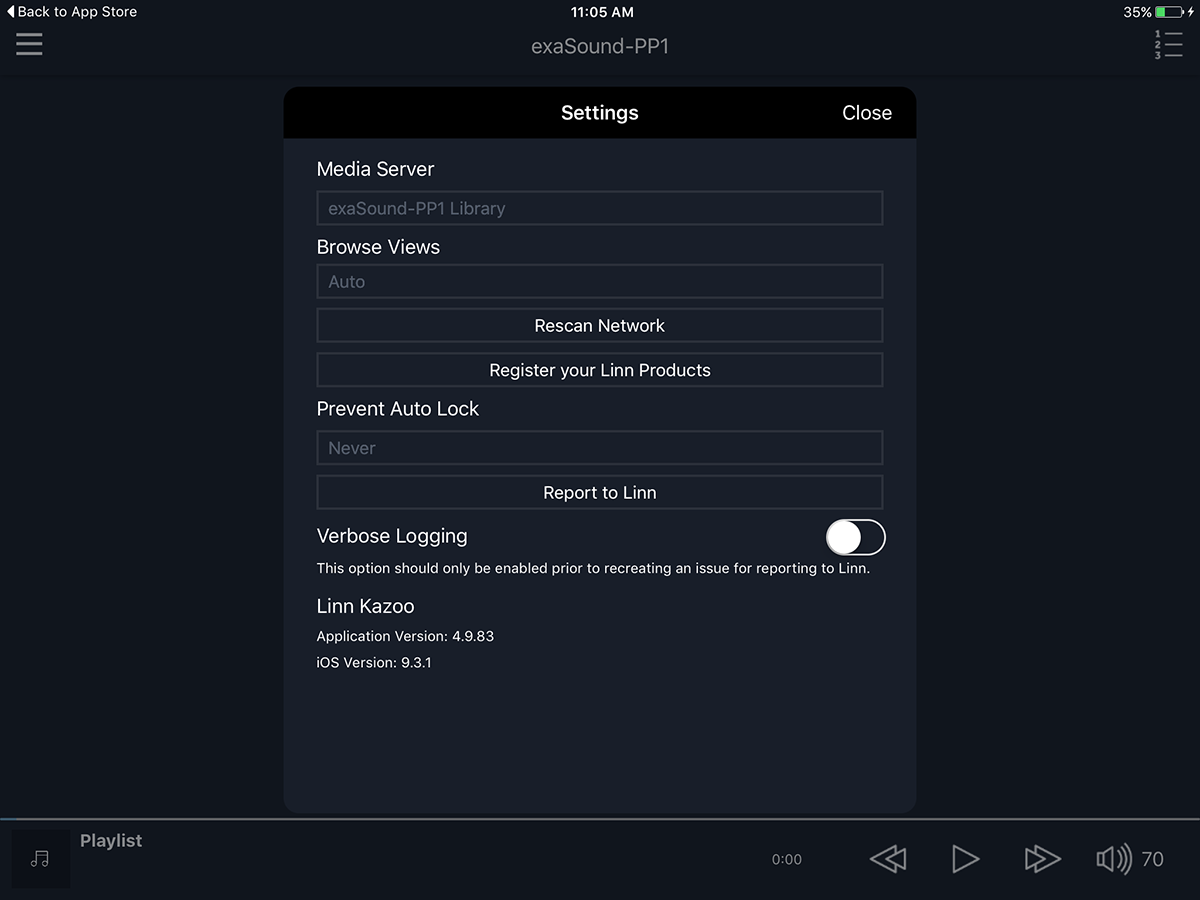
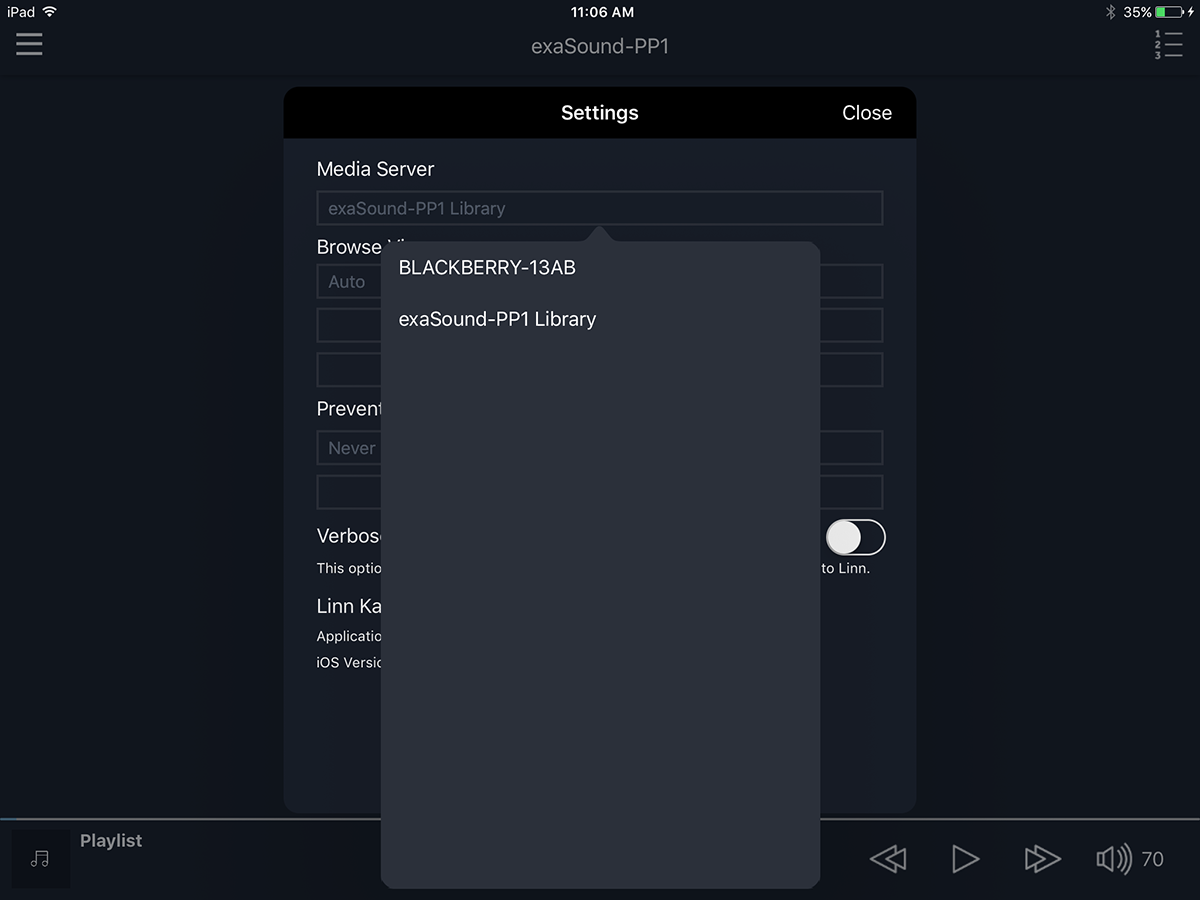
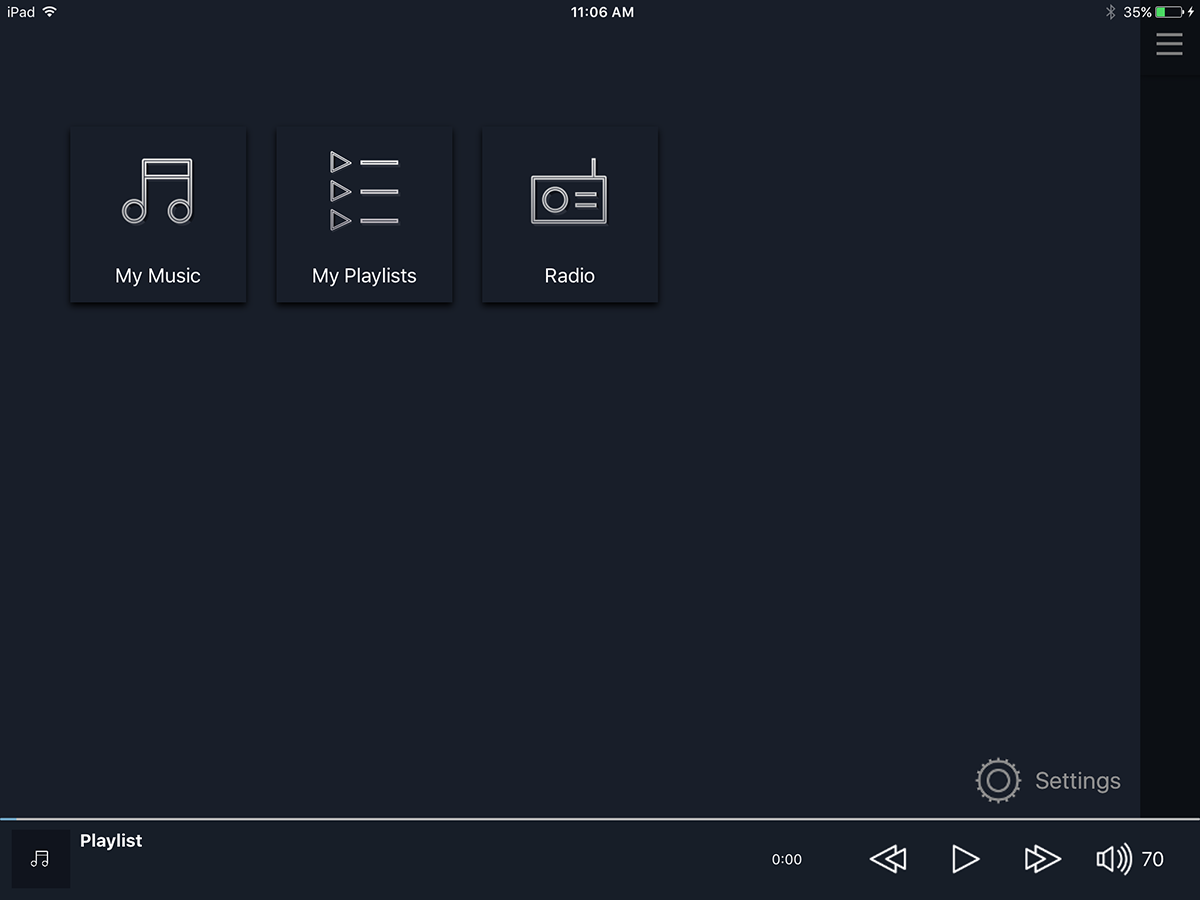
11. Tap or click Close when ready. This will take you back to the Kazoo Home window. Select My Music.
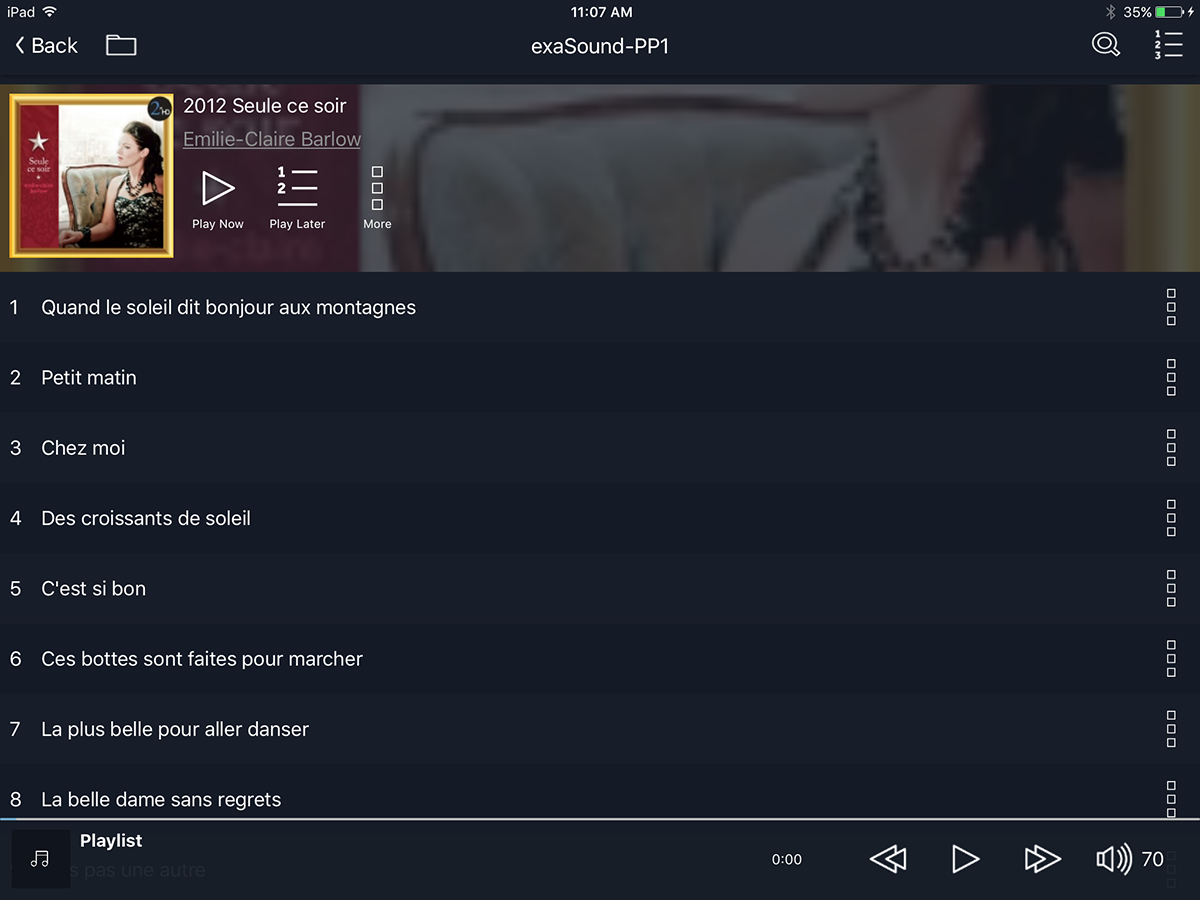
12. You can browse your music library by Album, Artist etc
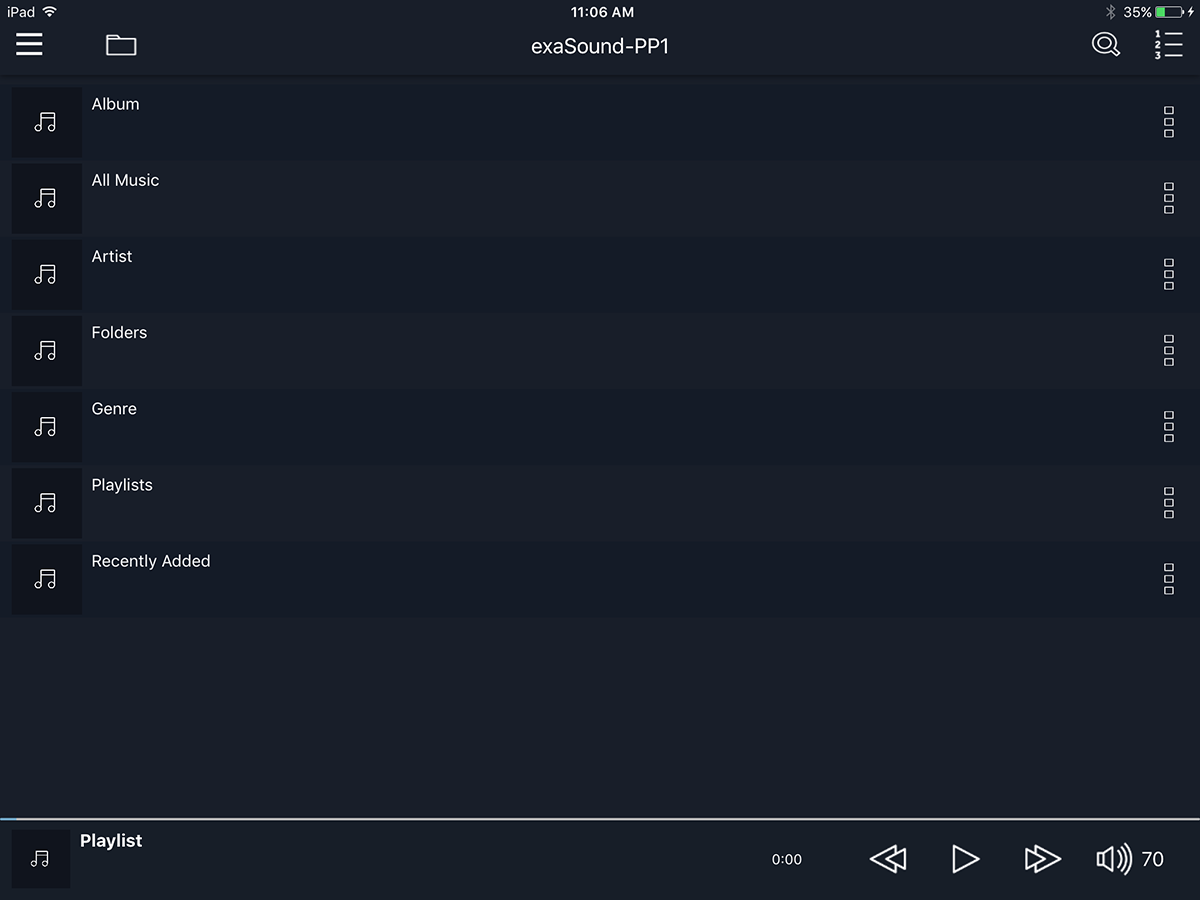
13. Select
Album.
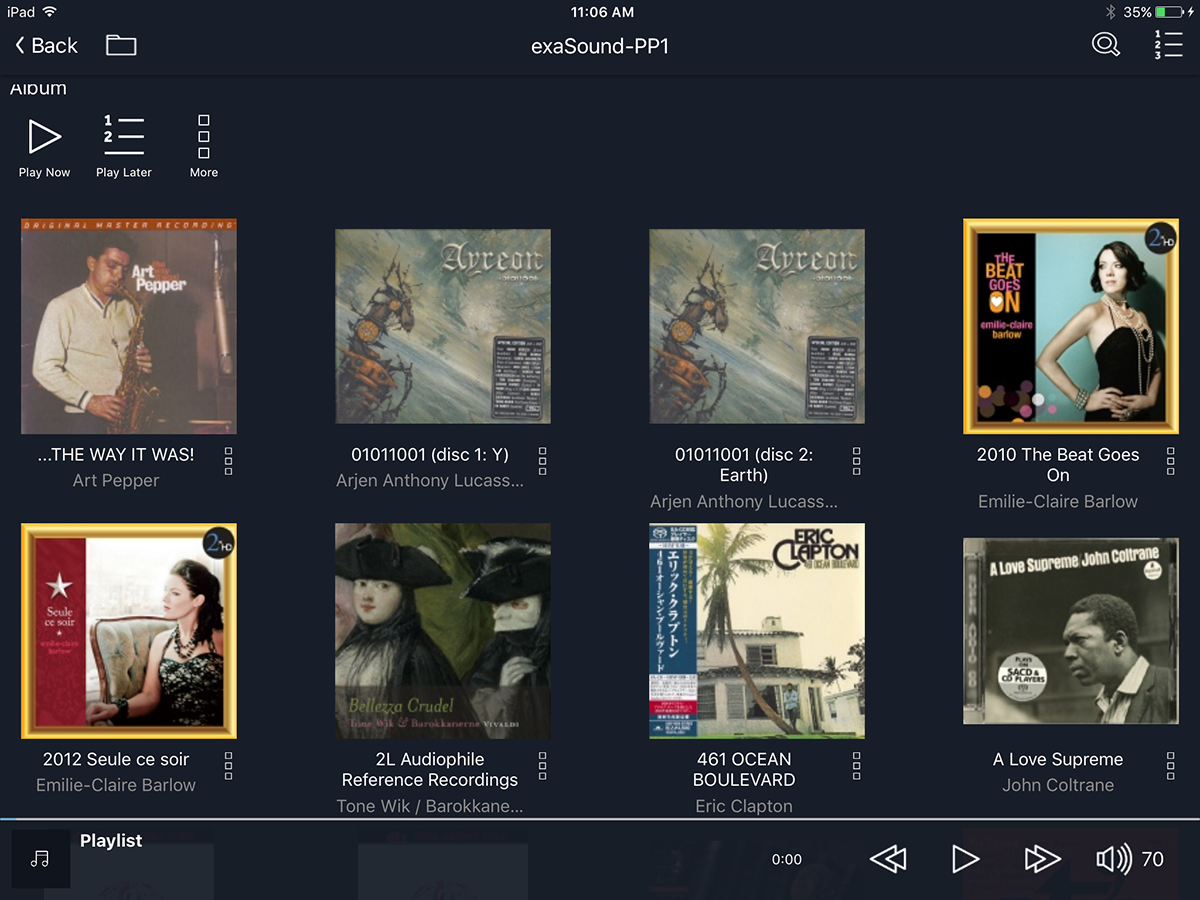
14. Tap or click on the
Volume Control icon located in the lower right corner of the screen. Make sure the volume level is safe.
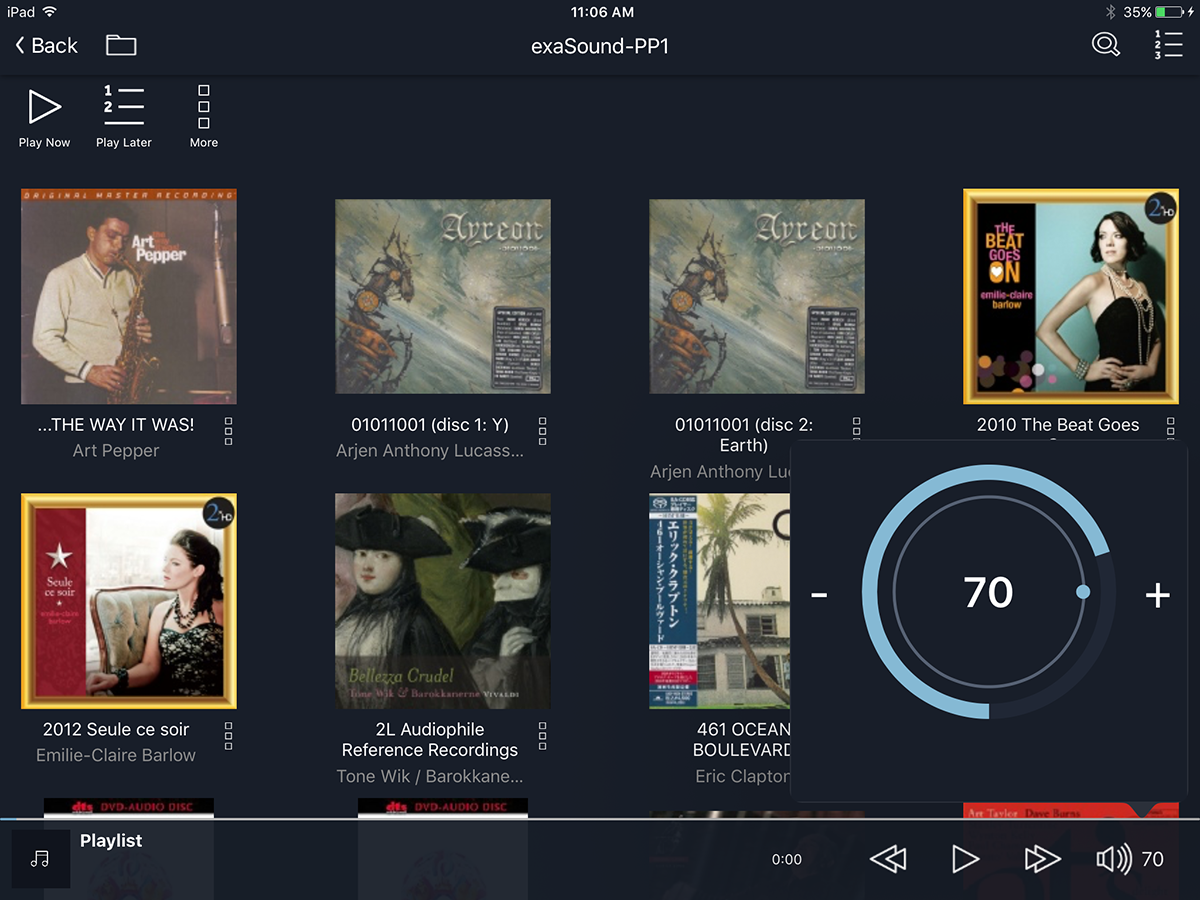
15. Select an album and play some music.